


ClubProperty.com · Member Guide
QR Code Cards in Real Estate
A professional way to present your listings and your profile, online and in print.
Introduction
A QR code is a square, machine-readable code that any modern smartphone camera can scan. With a single scan, the viewer is taken directly to a web page, with no address to type and no search to perform. In real estate, where interest is often sparked in a moment, in front of a sign, a brochure or a social media post, this immediate connection between the physical and the digital world is of particular value.
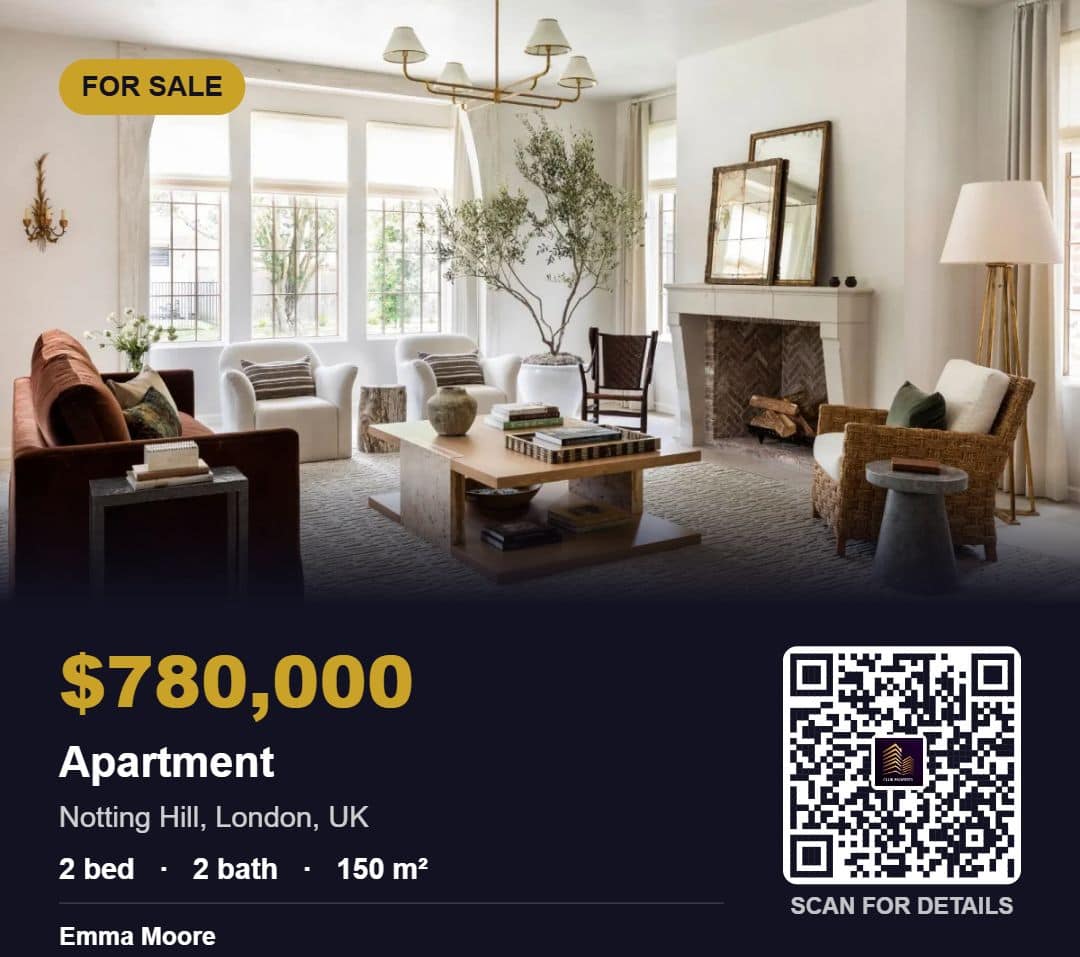
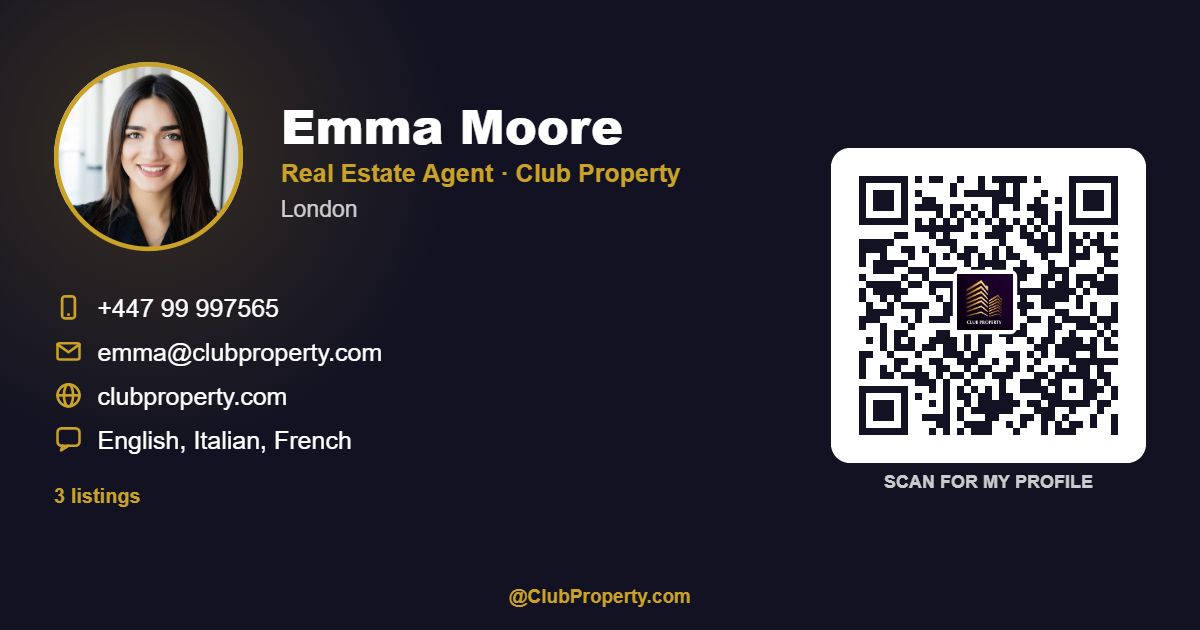
ClubProperty.com now provides every member with QR Code Cards: professionally designed images that combine your content with a dedicated QR code. Two cards are available. The Listing Card presents a property, and the Digital Business Card presents you, the agent or professional. Both are generated automatically from the information already published on your pages.
Benefits
For your listings
- Direct access. Prospective buyers reach the full listing, with photographs, price and details, in a single scan.
- Suitable for every channel. The card may be shared on WhatsApp, Facebook, LinkedIn, X and Telegram, or printed on brochures, window displays and “For Sale” signs.
- Consistent presentation. Each card displays the property photograph, price, location and key features in a uniform, branded layout.
- Measurable results. Every scan is recorded, allowing you to see which listings and which materials generate interest.
For your profile page
- A modern business card. Your photograph or logo, name, role, company, contact details, languages and latest listings are presented on a single card.
- Two QR options. The code may open your profile page, or save your contact details directly to the viewer’s telephone, which works even without an internet connection.
- Ready for print and for digital use. Formats include social media sizes and a print-ready business card of 85 × 55 mm, together with a contact file (.vcf) for e-mail signatures.
- Always current. The card is produced from your live profile, so it reflects your most recent information.
How to Use It
Please sign in to your account first. The relevant buttons are displayed to signed-in members only.
A. Creating a Listing Card
1 |
Open the page of the listing you wish to promote. |
2 |
Select Share with QR code. |
3 |
Review the card, which is completed automatically with the photograph, price, location and a QR code linked to the listing. Any text may be edited and a different photograph may be chosen. |
4 |
Choose the format that suits your channel: square, story or landscape. |
5 |
Select Share… on a mobile device, or Download or Copy image on a computer. A caption containing the link is prepared for you. |
B. Creating Your Digital Business Card
1 |
Open your own agent or professional profile page. |
2 |
Select My digital card with QR. This button is visible only to you, as the owner of the page. On some pages it appears in the lower right corner of the screen. |
3 |
Review your details, which are completed automatically from your profile. Every field may be edited, and you may choose your colours and a round photograph or a logo. |
4 |
Decide what the QR code should do: Opens my profile or Saves my contact. |
5 |
Choose a format (square, story, landscape or printed business card), then share or download the card. Download .vcf provides a contact file for your e-mail signature. |
C. Using the QR Page
All tools are also available in one place on the QR page, arranged in tabs: a standard QR code with your logo, the Listing Card (by pasting the link of any listing) and your Digital Business Card.
Monitoring Your Results
Each scan of your QR codes is recorded. The QR tracker tab in your dashboard shows the number of scans for every listing and for your Digital Business Card, so that you may assess which materials perform best.
Please note
- If a button is not visible, please confirm that you are signed in and, for the Digital Business Card, that you are viewing your own profile page.
- On a computer, the image should be downloaded or copied and then attached to your post manually.
- When printing a “Saves my contact” QR code, a minimum width of 3 cm is recommended to ensure reliable scanning.
- Editing a card does not alter your listing or your profile.
Related Articles
Panama Property Q4 2026: Inventory at a Nine-Year Low and Prices on the Move
Market outlook · Q4 2026 Panama Property Q4 2026: Inventory at a Nine-Year Low…
Read moreMonaco Property Q4 2026: 2 km², €57,000 a Square Metre and Nowhere to Build
Market outlook · Q4 2026 Monaco Property Q4 2026: 2 km², €57,000 a Square…
Read moreSwiss Property Q4 2026: Zero Rates, Empty Flats and Prices That Won’t Blink
Market outlook · Q4 2026 Swiss Property Q4 2026: Zero Rates, Empty Flats and…
Read moreMultilingual Real Estate Flyer Maker: Create Property Flyers from Your Listing
New on ClubProperty Turn any listing into a beautiful flyer, in any language Create…
Read more